
Strategies
Your library of betting plans. Yours, the community's, all in one place.
A strategy in Spin Savvy is a recipe for how to bet. It says how much to wager, what to wager on, and how to react after each spin (do you press? double? walk away?). Some strategies are simple, like flat-betting red until you're up ten units. Some are intricate, with branching logic that adapts to streaks and bankroll changes. The Strategies screen is where you keep them all.
Opening your library
From the home screen, tap Strategies. You'll land on the strategy library, which has a list on the left and a detail view on the right (on iPad and Mac). On a phone, the list and the detail view stack on top of each other and you tap a row to drill in.
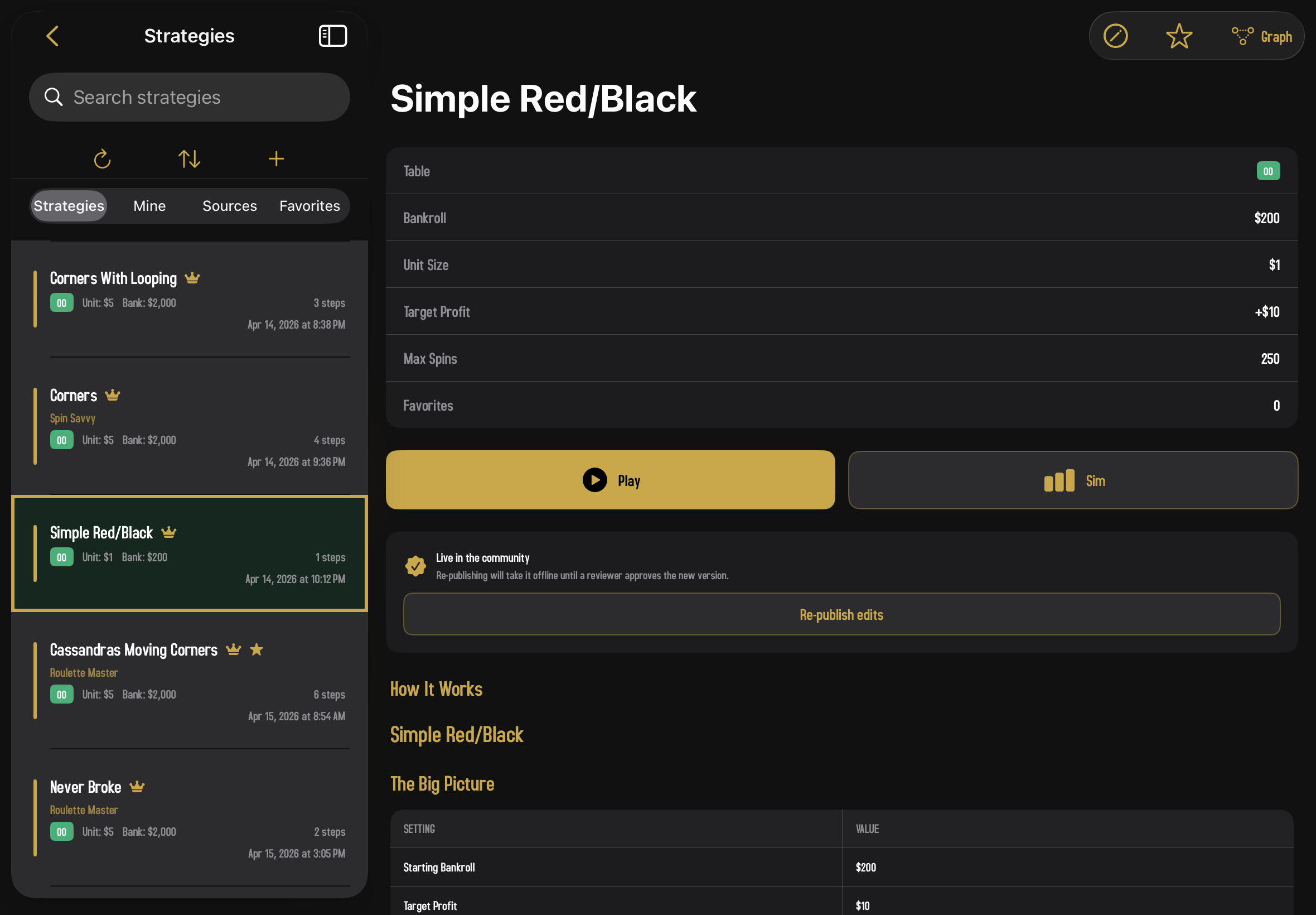
The four tabs
At the top of the library you'll see four tabs. They're four different ways to slice the same set of strategies.
Strategies
The default view. Every strategy on your device, yours and any community ones you can access, listed together. This is the all-in-one view most people use day-to-day.
Mine
Just the strategies you've created on this device — community strategies you've downloaded are filtered out. Quickest way to find your own work when your library is full of imported community strategies.
Sources
The same strategies, but grouped by where they came from. A strategy's section is its source title whenever one is set — even for strategies you created yourself. Strategies with no source fall back to the author's display name as @name, and your own unsourced strategies are pooled into a section labeled with your display name (the one you set in Settings), or just Mine if you haven't set one. Sections sort alphabetically. Useful if you've found a creator or article you like and want to see all the strategies tied to it in one place.
Favorites
Just the strategies you've starred. Tap any strategy's star icon to favorite it; tap again to un-favorite. Until you favorite something this tab will be empty with a friendly nudge to use the star icon.
Searching and sorting
At the top of the list there's a search bar. Start typing and the list filters in real time by strategy name. There's also a small sort button (look for the up/down arrows). Tap it to choose how strategies are ordered:
- Alpha. Alphabetical by name.
- Most Recent. Newest first.
You can also flip between ascending and descending order from the same panel.
Refreshing community strategies
Near the top of the list is a refresh button (a circular arrow). The app automatically pulls down new community strategies when you launch it, but if you want to grab the latest right now (for instance, after seeing a friend post a new one) tap the refresh button. You'll see a brief spinner while it talks to the server.
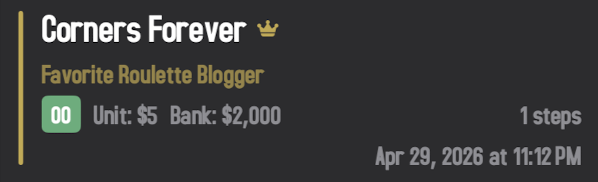
Reading a strategy row
Each row in the list packs in a fair bit of information once you know what to look for:
- Strategy name. The title the author gave it.
- Source. If the strategy has a linked source, its title appears under the name. If there's no source but the strategy came from the community, you'll see "by @DisplayName" instead.
- 🔒 Lock icon. This strategy is subscriber-only and you're on the free tier; tap it and the paywall comes up.
- 👑 Crown icon. You uploaded this one yourself.
- ⭐ Star icon. You've favorited it (or, untapped, you can tap to favorite).
- Small text. Table type, unit size, starting bankroll, and the number of steps in the strategy.
Creating a new strategy
Tap the + button in the top-right corner of the list. A blank strategy is created using your default settings (bankroll, unit size, table type, all configurable in Settings) and the strategy editor opens immediately. You can name it, then start designing.
Creating new strategies, duplicating, and deleting are subscriber features — if you're on the free tier and tap +, the paywall appears. Editing the strategies you already own works on every tier. Strategies authored by other players are always view-only; duplicate them to make your own version. Read more about subscriptions →
The strategy editor itself is a deep visual canvas where you wire up steps and decisions into a flowchart. Because that's a topic of its own, we've broken it out into a dedicated guide.
The graph editor has its own dedicated section. Start with The Graph Editor for the canvas tour, then read up on Node Types and the four Wager Groups. When you're ready to build, follow the worked example.
Duplicating a strategy
Found a strategy you like and want to tweak it? Long-press (or right-click on iPad/Mac) on its row and choose Duplicate. A copy is made under your name with " Copy" added to the title. You can then edit the copy freely without changing the original.
This is the easiest way to learn. Pick a community strategy, duplicate it, then experiment with the copy.
Deleting a strategy
Swipe a strategy row from right to left, or long-press the row and pick Delete. You'll get a confirmation alert before it's actually removed. You can only delete strategies you created. Community strategies you downloaded can't be deleted, but you can stop favoriting them so they fall out of your Favorites tab.
Favoriting
The star icon on every row toggles favorite status. Favorited strategies show up in the Favorites tab and are easier to find when your library grows. Favoriting is also how the community sees which strategies are popular: every favorite on a community strategy contributes to its public favorite count.
The strategy overview
Tap any strategy to open its overview screen. This is the strategy's home page, with its name, settings, a plain-English description of what it does, and the buttons that let you actually use it.
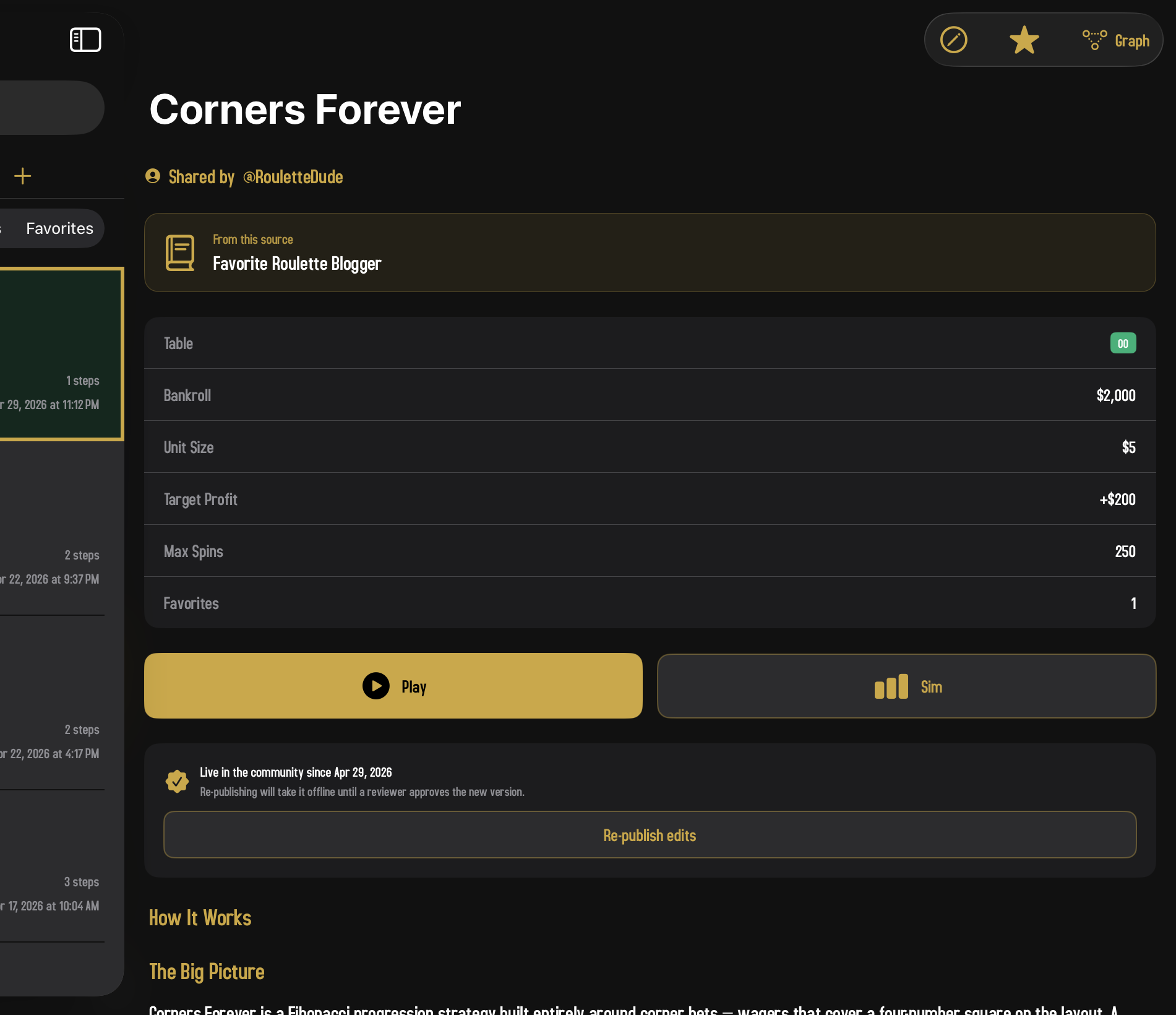
The metadata card
At the top, a tidy summary of the strategy's key numbers:
| Field | What it means |
|---|---|
| Table | Which roulette table the strategy is built for: American (double-zero), European (single-zero), or Triple Zero |
| Bankroll | How much money you start with |
| Unit Size | The dollar value of one chip in this strategy |
| Target Profit | How much profit triggers a successful end (set to $0 to mean "no profit goal, just play to max spins") |
| Max Spins | The hard stop. The strategy ends here even if no other condition triggers |
| Favorites | For community strategies: how many users have starred it |
Play and Sim
Two big buttons sit just below the metadata:
- Play. Drop into Play Mode with this strategy active. Spin manually with the strategy guiding you. Read more →
- Sim. Run the strategy through a Monte Carlo simulation: many sessions, all of them automatic, results in seconds. Read more →
If a strategy has any disconnected outputs in its graph (a "dead end"), Play and Sim will refuse to start and show you which steps need to be wired up. This is most common with strategies you're still building. If you see it on a community strategy, that's a bug worth reporting.
How It Works
Below the buttons, the strategy is described in plain English, step by step, with each node numbered. Some authors write a custom description for their strategy; for others, the app generates one automatically. Either way, this section is the fastest way to understand what a strategy actually does without opening the graph editor.
Sources
If the author linked external references (a YouTube video explaining the technique, a blog post about the math) they appear as a list of clickable links at the bottom of the overview.
The toolbar buttons
Up at the top of the overview screen are a few small icons:
- Pencil. Edit the strategy's settings (only shown for your own strategies).
- Star. Favorite or un-favorite the strategy.
- Graph. Open the visual node-graph editor where the strategy is actually built.
Strategies you've shared
If you've shared a strategy with the community, the overview also shows its share status:
- Share with the community. You haven't submitted yet; tap to start the sharing flow.
- Submitted [date], under review. A reviewer is checking it.
- Live in the community since [date]. It's been approved and other players can find it.
- Submission denied. The reviewer didn't approve it; the reason is shown so you can fix it and resubmit.
For full details on sharing, including the display name prompt and the review process, see the Community guide.