
Play Mode
Spin the wheel one bet at a time. Practice freely, or follow a strategy step by step.
Play Mode is the hands-on, real-time face of Spin Savvy. You place chips, you spin the wheel, you watch the ball drop, you see your bankroll move. Every spin is recorded and ends up in your Sessions history so you can review it later.
Two ways to enter Play Mode
From the home screen
Tap Play on the home screen to start a free-form session. There's no strategy active; you decide every wager yourself. Good for casual practice or for getting a feel for the table.
From a strategy
Open any strategy's overview page and tap the Play button. The strategy is now in the driver's seat: it suggests wagers, reacts to wins and losses, and tracks its own progress against your goals. You can still place additional manual bets if you like, but the strategy will keep telling you what it would do.
Play Mode is designed for landscape orientation on phones, since there's a lot to fit on screen. The app rotates automatically when you enter Play Mode, even if your phone's general rotation lock is on.
The Play Mode screen
Four areas to know:
- The history bar. A row of recent winning numbers runs across the top so you can spot streaks at a glance.
- The table. The full wager editor, exactly as covered in The Wager Editor. Place chips, undo, clear, all the same controls.
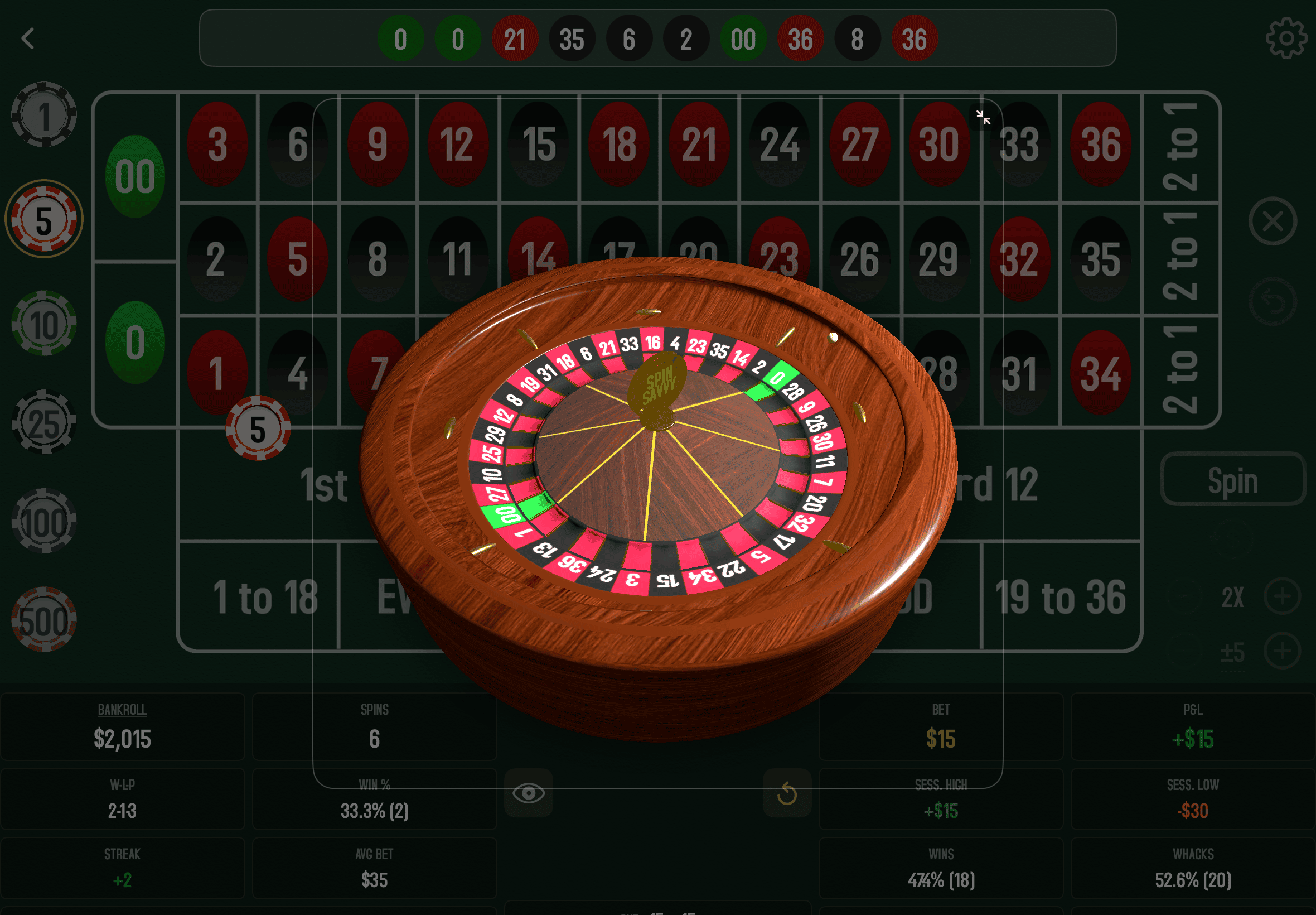
- The wheel and its sidekicks. A miniature 3D wheel sits at the center bottom of the screen, flanked by two buttons — Coverage (eye) on its left, Reset (circular arrow) on its right. Below the wheel, a wide OUT tile shows every unique net payout your current bets can produce. When you tap Spin, the wheel grows to fill the center while the ball rolls, then shrinks back to its place once the result has settled.
- The stats panels. A live readout of the session, laid out as two grids of bordered tiles that flank the mini-wheel. See below for what each tile means.
What the stats panels show
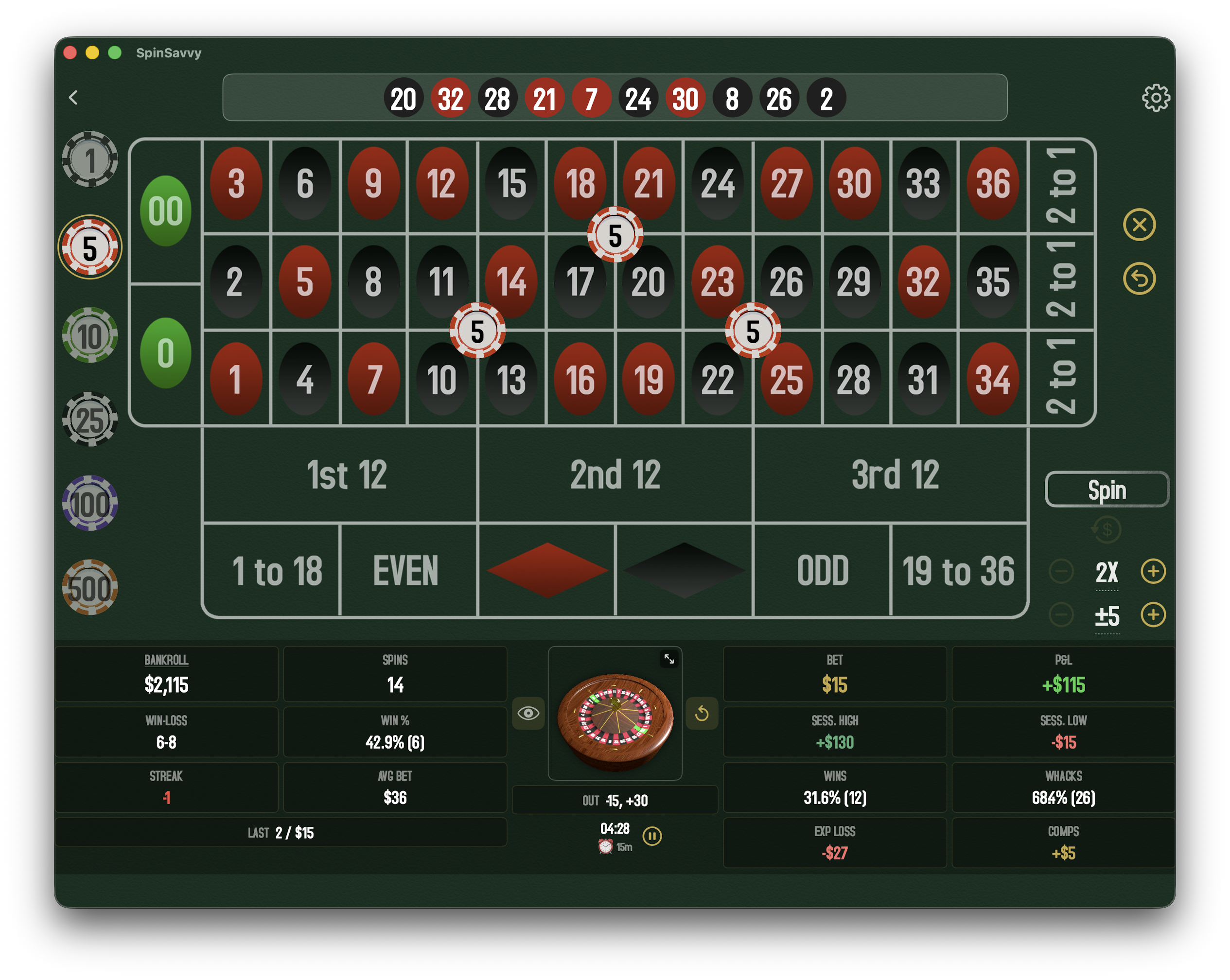
Left grid · session counts
- BANKROLL. Your current funds. Tap or click the BANKROLL tile to set a custom bankroll for this session — resets in the same session snap back to that value. (Subscriber feature; a small lock icon shows on the tile when the free tier's locked default is in use.)
- SPINS. How many spins you've completed this session.
- WIN-LOSS (or W-L-P once a push happens). Running tally of winning spins, losing spins, and pushes.
- WIN %. Percentage of spins that ended in net positive territory.
- STREAK. Your current run of wins (green +N) or losses (red −N). Resets as soon as the streak breaks.
- AVG BET. Average chips placed per spin so far.
- LAST. A wide tile spanning the bottom of the grid showing the last winning number and the size of the bet on that spin.
Right grid · your money
- BET. Total amount currently on the table for the next spin.
- P&L. Net profit or loss this session. Green when you're up, red when you're down.
- SESS. HIGH and SESS. LOW. The peak P&L and the worst dip you've hit so far this session. HIGH turns green when positive; LOW turns red when negative.
- WINS and WHACKS. For your current wager layout, the count of wheel pockets that would pay out (wins) or lose (whacks). These reflect the bet on the table — not the running session — and update as you place chips.
- EXP LOSS. Theoretical expected loss based on the house edge, your current wager structure, and the number of spins played. Red when nonzero so you can watch the house edge erode the bankroll in real time.
- COMPS. The comp value the casino would award based on EXP LOSS. Gold when nonzero.
Center column · wheel, buttons, and OUT
- Coverage (eye). The gold button immediately to the left of the mini-wheel. Toggles a coverage overlay on the table and the wheel (subscriber feature). Each table cell lights up by net outcome, and the 3D mini-wheel is replaced by a top-down static wheel showing the same coverage in physical pocket order. Tap Spin and the static wheel steps aside so you can watch the 3D wheel spin as usual; it returns when the spin finishes. Expand the wheel to see the net value printed in each pocket; while the wheel is small only the colors are shown so they stay readable.
- Reset (circular arrow). The gold button immediately to the right of the mini-wheel. Resets the session (same prompt as the S shortcut).
- OUT. The wide tile directly below the mini-wheel. Lists every unique net payout your current wagers can produce. Useful for sanity-checking a complicated bet structure before you spin.
- Session timer. Sits just below OUT, centered, with a small pause/play icon to its right. Reads MM:SS while you're under an hour and flips to H:MM:SS after that. The clock starts on your first Spin of the session, not when you place chips — that way you can fiddle with a layout without the timer ticking. Tap the pause icon to freeze the clock at any time; tapping Spin while paused auto-resumes it so you don't have to remember. The timer survives if you clear and rebuild your wagers, and resets along with everything else when you reset the session. Don't want it on screen? Turn it off in Settings → Session Timer.
- Alarm. Tap the timer text itself to open the alarm picker — a small sheet with preset chips (5m / 10m / 15m / 20m / 30m / 60m) and a custom-minutes field. When the elapsed time crosses the target the app plays an alarm sound and the timer text flashes red and gold for a few seconds. Alarms ignore the global Sounds toggle so an armed alarm still rings even with game sounds off. A small ⏰ Nm caption appears under the timer whenever an alarm is set, so you can see what's armed without opening the picker. Tap Clear in the picker to disarm.
Setting the unit size
The unit stepper on the side reads ±N, where N is the current unit size — the amount the + and − buttons add to or subtract from each chip on the table. Tap or click the ±N label itself to open a picker and pick a different unit size on the fly. The ×N stepper next to it multiplies or divides every wager by the same factor regardless of unit size (a quick Martingale!!) — and just like the unit stepper, tap or click the ×N label to change the factor (3×, 5×, anything you like).
The buttons
The big controls in Play Mode:
- Spin. Spins the wheel. The table locks while the wheel is spinning so you can't sneak a bet in mid-spin.
- Rebet. Drops the same chips you used last spin in the same spots. The fastest way to keep flat-betting.
- Clear. Removes every chip from the table.
- Undo. Reverts your last placement. There's a stack of recent actions, so you can step backwards.
Keyboard shortcuts
Connect a hardware keyboard (Mac, iPad with Magic/Smart Keyboard, iPhone with a Bluetooth keyboard) and Play Mode picks up these shortcuts. Each one fires only when its on-screen button would be enabled.
| Key | Action |
|---|---|
| Enter | Spin the wheel |
| R | Rebet — drop your last wagers again |
| X | Clear all chips from the table |
| Esc | Undo your last placement |
| 2 | Multiply every wager by the current ×N factor (the ×N button's +) |
| Shift + 2 | Divide every wager by the current ×N factor (the ×N button's −) |
| U | Add one unit to every wager (the unit stepper's +) |
| Shift + U | Subtract one unit from every wager (the unit stepper's −) |
| S | Reset the session (shows the confirmation prompt) |
| / | Place the strategy's suggested wagers when a strategy is active; otherwise acts like Rebet |
How a spin works
- Place your chips on the table: single numbers, outside bets, whatever you like.
- Tap Spin. The wheel animates and the ball settles on a number.
- The winning number lights up gold on the table. Each of your bets is evaluated. Wins pay out, losses get swept.
- Your bankroll updates. A brief notification slides in showing the spin's net result (e.g. "+$50 from Red").
- The table unlocks and you're free to place new bets, hit Rebet, or walk away.
Behind the scenes, every spin is added to your current session record: the winning number, every wager, the resolved win/loss for each bet, and your running bankroll.
Want to move through hands quickly? Head to Settings and turn on Fast Spins. The wheel animation is skipped entirely and the app just picks the winning number instantly. Perfect for long sessions when you'd rather focus on the results than watch the ball drop.
Following a strategy
If you launched Play Mode with a strategy active, things look a little different. After every spin, the strategy works out what to do next — whether to press the bet, reset, switch spots, or sit out — and shows you the next move in a guidance strip above the table.
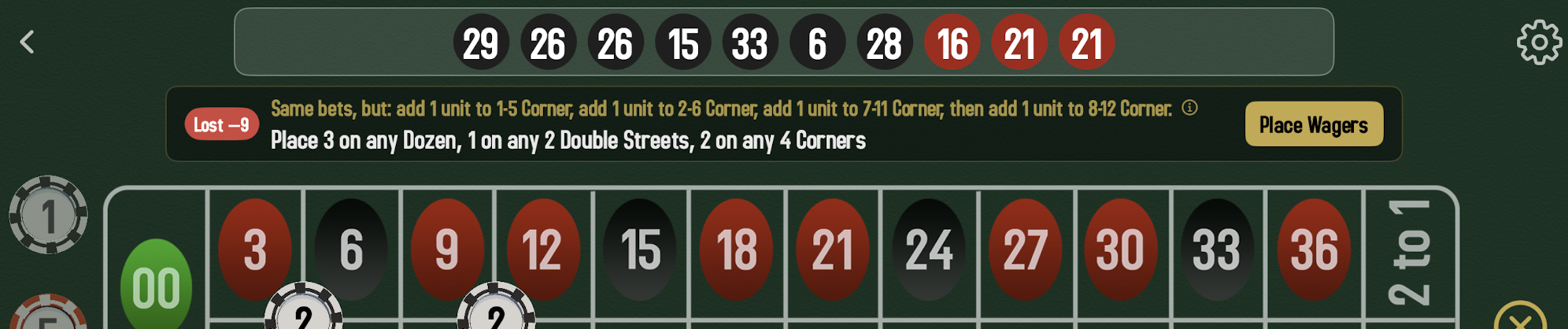
The guidance strip is split into three parts:
- Result chip — a green Won +N or red Lost −N pill on the left shows how the last spin went, so you can see why the next move follows from it. (Hidden before the first spin.)
- Reason line — a plain-language sentence describing what's happening and why. For example: "Lost — double up so one win covers it," "Won — back to your base bet," or "Same bets, but: double Red, then add 5 on Green."
- Bet list — the actual wagers for this spin, e.g. "Place 20 on Red, 10 on Black." Tap Place Wagers on the right to drop those chips on the table automatically.
Tap the small (i) next to the reason line for a one-paragraph explainer on the strategy concept driving this move — handy if you're learning Martingale, Fibonacci, Parlay, or any of the other patterns as you play.
You're free to follow the guidance, ignore it, or place additional wagers on top. The strategy keeps tracking its own state regardless.
The strategy also enforces its own exit conditions, covered just below.
Exit conditions
A session ends when one of three things happens:
You hit your profit target
If your active strategy has a profit target and you reach it, the app pops up and asks: "You've reached your target! Continue or End Session?" Tap End Session to lock in the win, or Continue to push your luck.
You go bankrupt
If your bankroll hits zero, you'll see "You're out of money! Reset or End Session?" Tap Reset to refund your starting bankroll and keep playing (in the same session) or End Session to wrap up.
You hit max spins
If a strategy's maximum spin count is reached, the session ends automatically. This is the strategy author's way of saying "play this many hands and walk away regardless."
You decide to stop
You can always end a session manually. Use the close/back gesture to leave Play Mode and you'll be asked to confirm.
What gets saved
Every Play Mode session, successful, busted, or abandoned, is saved to your device. You can review them all later in Sessions. We capture:
- Every spin and its winning number
- Every wager you placed
- The win/loss outcome of each bet
- Your bankroll after each spin
- Streaks, peaks, and lows
- The strategy in use, if any
Saved sessions live on the device that recorded them for your use only. Spin Savvy never uploads sessions, wagers, or bankroll history to the cloud. Only strategies that you explicitly submit for community review ever leave your device.
Free-tier limits in Play Mode
- Customizing the starting bankroll in Play Mode (free tier uses your default from Settings, capped at a modest amount)
- Using the coverage overlay during play
- Viewing more than the most recent few sessions
None of these stop you from playing or following strategies. Subscription details →