Settings
Defaults, preferences, and your community profile, all in one place.
Tap the gear icon in the top-right corner of the home screen to open Settings. The screen scrolls; just keep going to find everything. Tap Done in the corner to dismiss when you're finished.
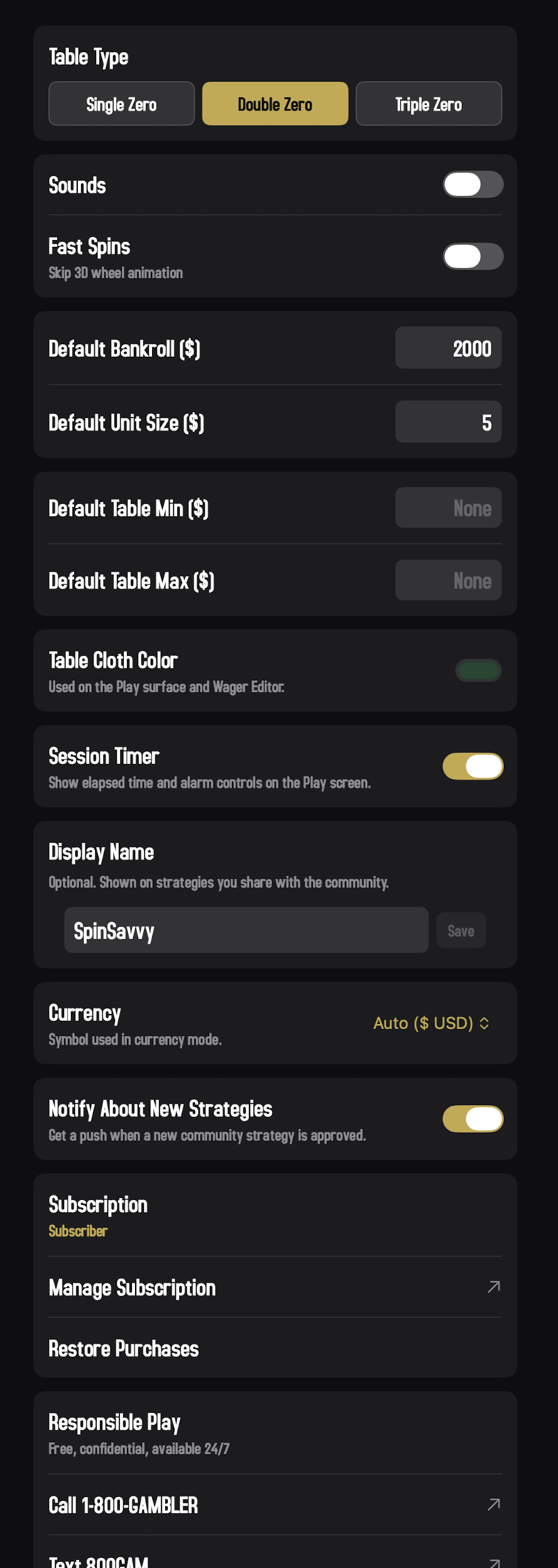
Table Type
The default roulette table for new strategies and free-form play sessions. The picker is a three-pill segmented control:
- Single Zero (European). Best odds for the player; lowest house edge.
- Double Zero (American). The classic Vegas table.
- Triple Zero. Three zeros; highest house edge, used by some newer casinos.
You can override this on a per-strategy basis when creating or editing a strategy. The setting here is just the default for new ones.
Sounds
Toggle wheel and chip sound effects on or off. Some players love the casino atmosphere; some find the spin sound gets old after the hundredth spin. Up to you.
Fast Spins
Skip the 3D wheel animation entirely. With Fast Spins on, the app simply picks the winning number instantly. No spinning ball, no wheel motion. Tap Spin and the result appears right away. Great for grinding through long sessions or when you're more interested in the math than the showmanship. Turn it off any time you want the full casino feel back.
Default Bankroll
How much "money" you start with when you launch a free-form Play session or create a new strategy. Pick a number that feels comfortable to you. Most players set it somewhere in the low thousands.
This is in dollars (or your chosen currency, covered just below).
Default Unit Size
The dollar value of one chip in the strategies you build. Small unit sizes make for safer, longer sessions; bigger ones make for shorter, more dramatic ones. Common defaults are $1 or $5.
The strategy editor displays wagers in dollars by default, but each wager is stored internally as a unit multiple so the same strategy can run at any stake level. The unit size you set here controls the dollar value of one unit in any new strategy you create. Existing strategies keep whatever unit size they were created with. If you'd rather see the underlying unit values on the canvas, the editor's $ toolbar button toggles between dollars (the default) and units.
Default Table Min and Default Table Max
Optional minimum and maximum bet amounts. If you fill these in, the table will enforce them across the app. In Play Mode the bet is refused; in simulation the session terminates the moment a required wager would fall outside the band, and it shows up as a Table Limit exit in the Monte Carlo results. Each wager area is checked on its own, the same way a real casino enforces per-spot limits.
Most casinos have table limits, so if you're trying to model a real table experience, fill these in to match. If you don't care, leave them blank ("None"). A strategy's own Table Min and Table Max fields, if set, override these defaults for that strategy. The simulation setup screen also has an Ignore table min and max toggle (under Advanced) for runs where you want to study the math without the cap in the way.
Table Cloth Color
The color of the felt cloth on the Play surface and the Wager Editor table. Tap the swatch to open a color picker for a custom shade. A subtle but enjoyable bit of personalization. The rest of the app uses a clean dark canvas, so this only affects the betting surfaces themselves.
Session Timer
Toggles the elapsed-time display (and its tap-for-alarm picker) that lives under the OUT tile on the Play screen. On by default. Turn it off if you'd rather not see the clock — handy when you want to forget how long a session has been running, or just want a cleaner stats bar. See Play Mode for details on the timer itself, including the pause button and alarm presets.
Display Name
This is your handle for sharing strategies with the community. When you submit a strategy and it's approved, other players see "by @YourName" on it.
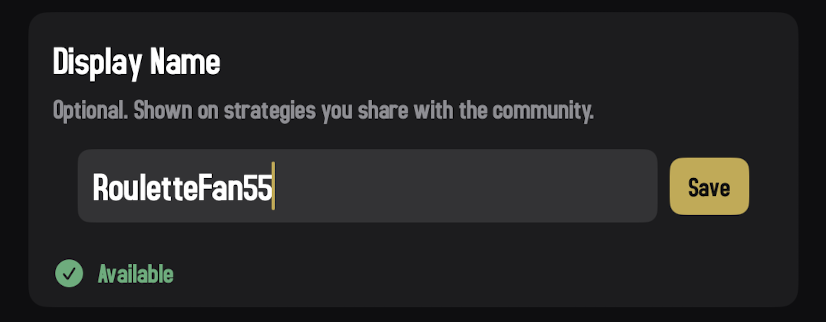
Type a name you'd like to use. As you type, the app pings the server in the background to check whether that name is available. After about half a second of not typing, you'll see one of:
- Available. Green check, you're good to go.
- That name is taken. Someone else is using it; try another.
- Must be 3 to 20 characters, letters/numbers/underscores only. Fix the format and try again.
Tap Save to lock in the name. You can clear the field and save again to remove your display name; subsequent shared strategies will go up anonymously.
Your display name shows on every strategy you've ever submitted, but the app will start showing the new name as soon as it's accepted by the server. If you've built up a following under one name and switch, anyone looking for "@OldName" won't find anything; they'll need to know your new name. Pick something you'll keep.
Currency
Choose how dollar amounts are displayed throughout the app:
- Auto. Uses your device's regional setting.
- Or pick a specific currency: USD, EUR, GBP, etc.
The number doesn't change, only the symbol. Choosing EUR doesn't convert your bankroll; it just labels it as €.
There's also a small toggle here for whether to show the currency symbol inline on the strategy graph editor. Handy if you find the symbols are crowding the canvas.
Notify About New Strategies
A toggle for push notifications. With it on, any time a reviewer approves a freshly submitted community strategy, your phone gets a quiet ping. Tap the notification and Spin Savvy opens straight to that strategy in your library.
The first time you visit the Strategies screen, the app asks iOS for notification permission. Tap Allow and this toggle flips on automatically. Tap Don't Allow and the toggle stays off until you decide to enable it here. If you previously denied the iOS prompt and want to turn pushes on now, flipping the toggle offers a shortcut to the iOS Settings app where you can re-enable notifications for Spin Savvy at the system level.
Flipping the toggle off marks your device as opted out on the server, so no future approvals will send you a push. Flipping it back on re-enrolls you with no need to re-prompt.
Unlike most settings on this screen, this one is not synced via iCloud. Each device makes its own decision about whether to receive pushes. If you have Spin Savvy on both iPhone and iPad, you can keep notifications on one and off on the other.
Subscription
Near the bottom of the screen is your current subscription status: either Free or Subscriber.
- If you're on the free tier, an Upgrade button takes you to the paywall.
- If you're a subscriber, a Manage Subscription button hands you off to Apple's subscription management screen, where you can change plans or cancel.
- A Restore Purchases button is always available. Useful if you've subscribed before, are on a new device, and the app hasn't picked up your subscription yet.
For details on what subscribing unlocks, see the Subscription page.
Reset to Default
The link at the very bottom of the screen. Tap Reset to Default to restore every setting on this screen to its first-launch default. The app asks you to confirm before it actually resets. Your strategies and your session history are not affected, only the preferences on this screen.
What syncs across devices
If you use Spin Savvy on more than one device — an iPhone, iPad, and Mac, say — and they're all signed into the same iCloud account, your library follows you automatically. The same strategies, sessions, and settings appear on every device, and a change made on one shows up on the others within a minute or two.
What's included:
- Strategies you create or download from the community.
- Saved play sessions, including the per-spin log and bankroll history for each one.
- Your preferences on this screen: default bankroll, unit size, table cloth color, currency, sounds, fast spins, and the rest.
- Your display name and community profile.
A few things to know:
- Sync runs through iCloud, so it only works when your devices are signed into iCloud and online. Without iCloud, each device keeps its own library locally and nothing crosses over.
- The first launch on a brand-new device may take a minute or two to populate. The Strategies screen shows a "Syncing from iCloud…" placeholder while it's catching up.
- None of this goes to a Spin Savvy server. Your data sits in your private iCloud, which only you can read. The only data that ever leaves your device for Spin Savvy's own servers is a strategy you explicitly submit to the community for review.