
The Community
Borrow ideas from other players, and share your own when you've got something good.
Spin Savvy has a built-in community catalog: a curated list of strategies that other players have submitted and a reviewer has approved. Anything in the catalog is yours to download and try, and once you've built a strategy you're proud of, you can submit it for review and add it to the list yourself.
Where the community lives
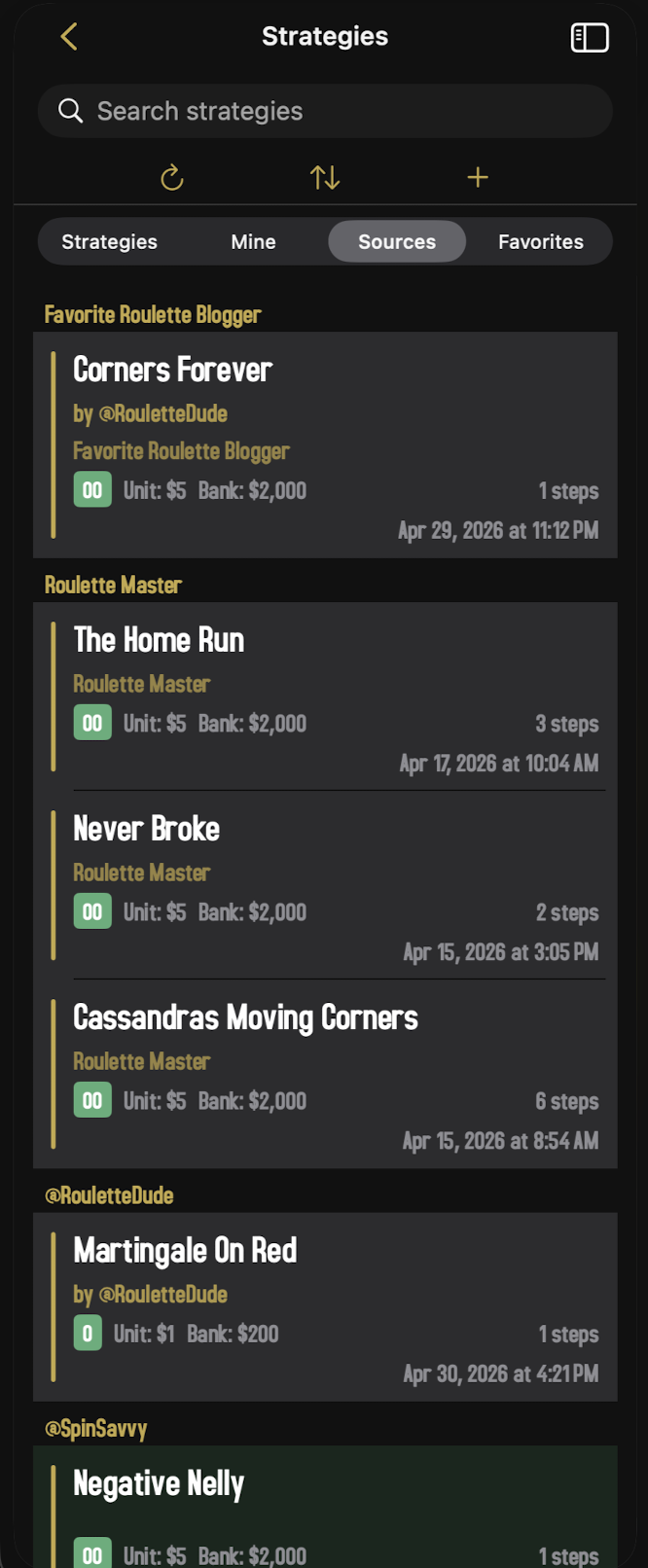
There's no separate "community" tab to find. Approved community strategies sit right inside your Strategies library, mixed in with your own. They're easy to spot: each one shows the author's name (e.g. "by @SomeAuthor") under its title. The Sources tab in the library is the cleanest way to browse, since it groups every strategy by its source attribution. That can be an author handle (a "@RouletteDude" group), or a free-form name like a YouTube channel or a blog the author cited as their inspiration ("Roulette Master," "Favorite Roulette Blogger"). Either way, all of one creator's or one source's work shows up in a single block.
How strategies arrive on your device
Whenever you open the app, Spin Savvy quietly checks the server for new community strategies and downloads any that have been approved since your last sync. You don't have to do anything; they just appear in your library next time you look. If you'd like to grab the latest right now, tap the refresh button (the circular arrow) at the top of the strategies list. A spinner will appear briefly, then any new strategies show up.
If you've enabled Notify About New Strategies in Settings, you don't have to wait for your next app open: as soon as a reviewer approves a new strategy, your phone receives a push. Tap the notification to jump straight to that strategy in your library. The first time you visit the Strategies screen, Spin Savvy asks iOS for notification permission so this can work; you can change your mind any time from Settings.
Trying a community strategy
- Open the Strategies library and find a strategy that interests you. Look for a row with "by @SomeAuthor"; that's a community one.
- Tap the row to open its overview. Read the "How It Works" section and any sources the author linked.
- If you like what you see, tap Play to try it live or Sim to simulate it through many sessions and see how it performs.
- Tap the star icon to favorite it if you want to keep it close at hand.
You can't directly edit a community strategy; it belongs to its author. But you can duplicate it to create your own copy that you're free to modify. Long-press the row in the strategies list and choose Duplicate. The copy belongs to you and you can edit, simulate, or even share it as your own variation.
Sharing a strategy you built
If you've built a strategy you're happy with, you can submit it to the community catalog. Once a reviewer approves it, every other Spin Savvy player will see it on their device the next time they sync.
You'll find the share button on the overview screen of any strategy you created. Look for the "Share with the community" card. It's a small banner that says something like "Help others. Submit this strategy to the catalog. A reviewer will check it before it goes live."
Step 1 · Pick a display name (first time only)
If you've never shared a strategy before and you haven't set a display name yet, the app will ask if you'd like to add one. A display name is the credit line that appears under your strategies (the "by @YourName" tag) so other players know who created the strategy.
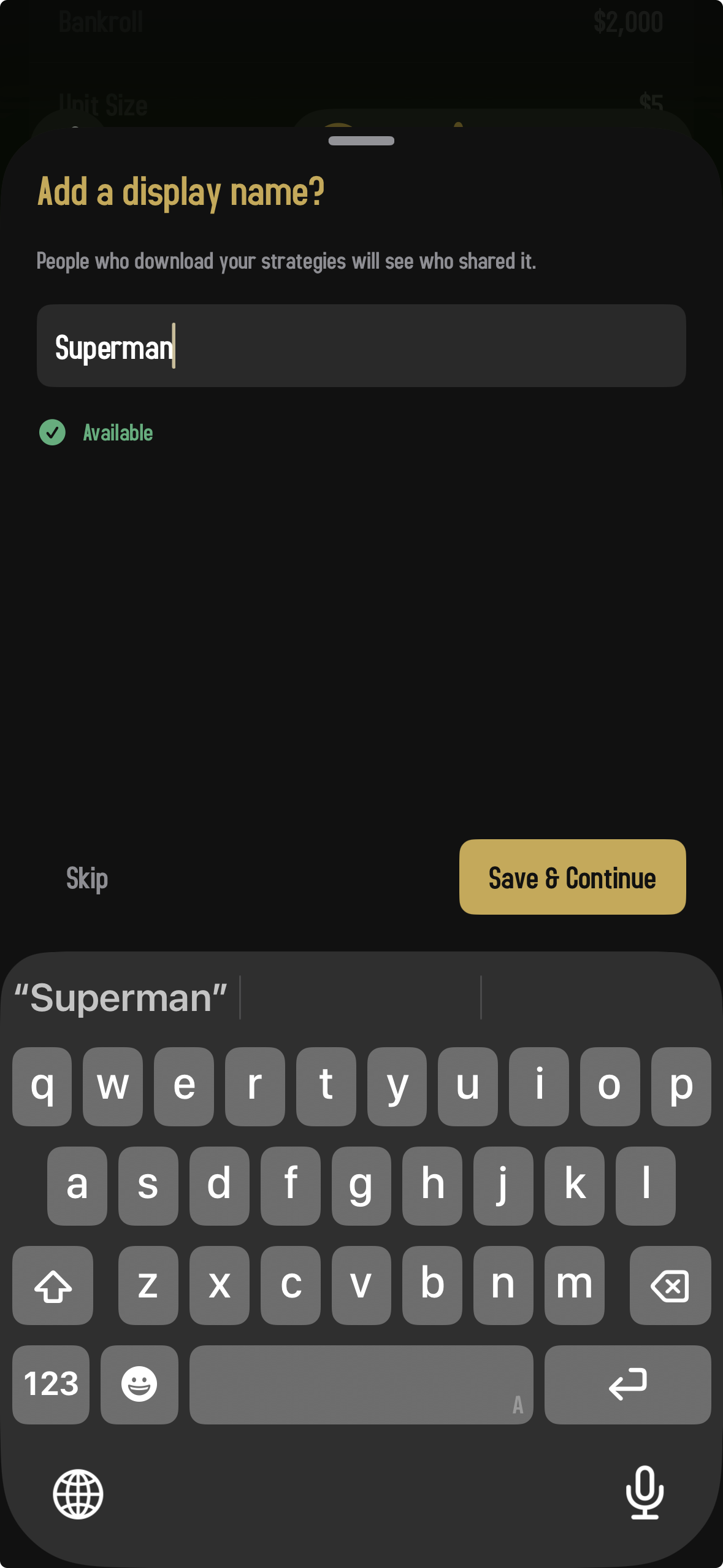
Display names follow a few simple rules:
- 3 to 20 characters long
- Letters, numbers, and underscores only
- Each name can only be used by one person
As you type, the app checks with the server in real time to confirm the name is available. You'll see "Available" (green) or "That name is taken" (red) within a second. Pick one you're happy with. You can change it later in Settings, but it's a hassle for anyone trying to find your previous strategies, so it's best to choose something you'll keep.
You can also tap Skip and share anonymously. Your strategy will still go up, but no one will be able to credit you for it.
Step 2 · The share sheet
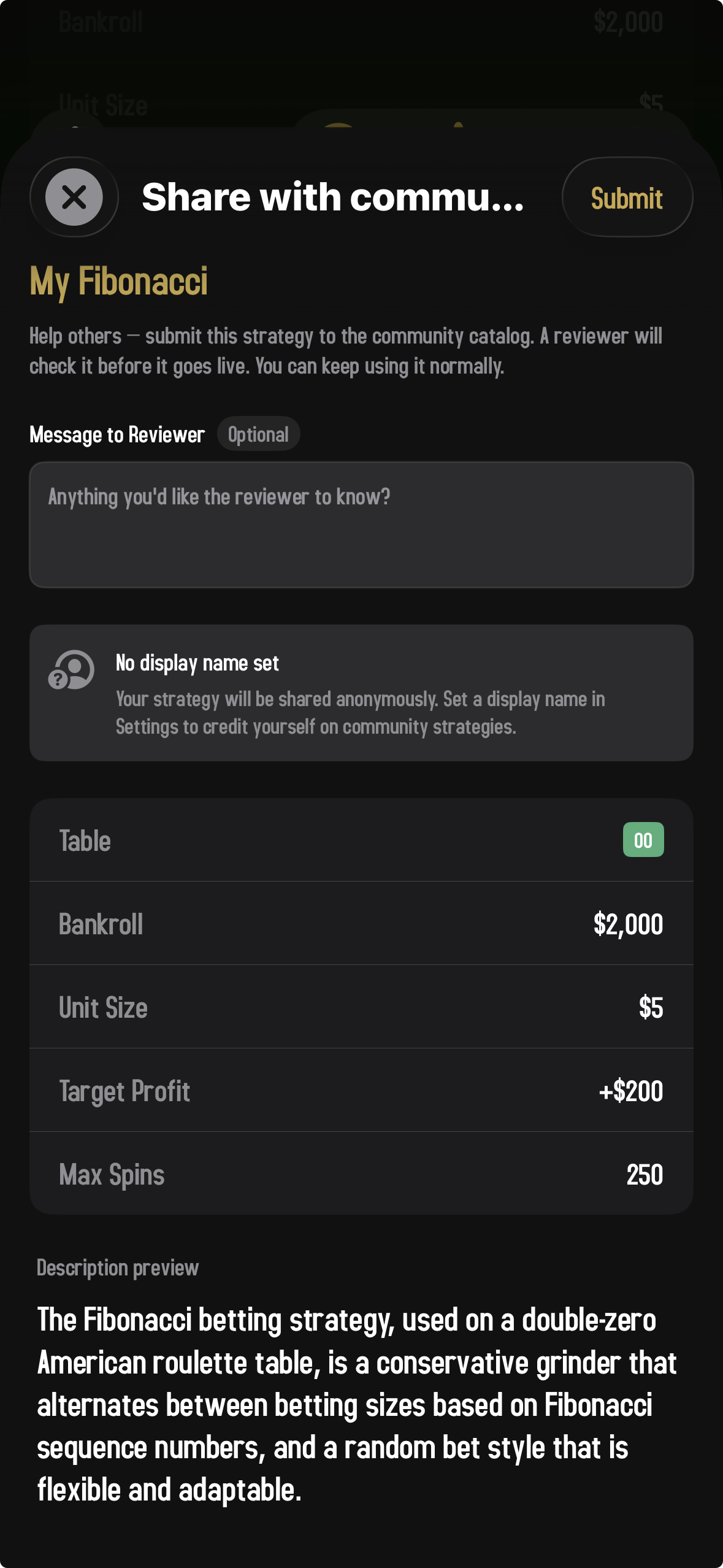
Once you have a display name (or have chosen to skip), the share sheet opens. It shows you exactly what's about to be submitted:
- The strategy name. Make sure it's something descriptive, since it'll be how other players find you.
- An optional message to the reviewer. A chance to tell them about the strategy or explain anything unusual ("based on the Martingale method, with a profit target tweak").
- Your attribution. If you've set a display name, you'll see "Sharing as @YourName." If you haven't, you'll see a "No display name set" card explaining the strategy will be shared anonymously and pointing you to Settings to add one. Either way, the submission still goes through.
- A read-only summary. Table type, bankroll, unit size, target profit, max spins.
- Description preview. An auto-generated description summarizing what the strategy does. This is what other players will see when they browse the catalog.
When everything looks right, tap Submit in the top-right of the sheet header. The app uploads the strategy and you're returned to the overview screen.
- The strategy needs a name (no blank titles)
- The graph must be complete: every step needs all of its outputs connected. If any "dead ends" exist, the share sheet shows a red banner listing them and the Submit button stays disabled until you go fix them.
Step 3 · The review
Submitting doesn't immediately put your strategy in front of other players. A reviewer needs to look it over first. They check that the strategy actually does what its name suggests, that the description and sources make sense, and that nothing is broken or duplicated. Reviews aren't instant; depending on volume, it can take a day or two.
While your strategy is being reviewed, the share status card on the overview shows "Submitted [date], under review." Once it's approved, the card changes to "Live in the community since [date]" and your strategy starts appearing in other players' libraries on their next sync.
If something gets denied
Sometimes a reviewer won't approve a submission. Maybe the strategy duplicates something already in the catalog, maybe the description doesn't match what the graph actually does, maybe something's incomplete. In that case the share status changes to "Submission denied" and the reviewer's reason is shown right on the overview. Read the reason, fix the issue, and tap the Re-publish button to submit a new version.
Re-publishing edits
Already shared a strategy and want to update it? Open the strategy's overview, find the share status card, and tap "Re-publish edits." A new version is submitted to review. While it's being reviewed, the previous version is taken offline so other players don't see two copies of the same strategy. Once the new version is approved, it replaces the old one.
Re-publishing means your strategy is briefly invisible to other players while the new version is being reviewed. If you've made a small typo fix you can ignore, you might leave it alone. If you've made a real change, re-publishing is the way to push it out.
Subscriber-only strategies
Some community strategies are marked as subscriber-only. On the free tier they appear in your library with a lock icon. You can see they exist, but you can't open them. Tap a locked strategy and the paywall comes up. Subscribers see them just like any other strategy.
Authors decide whether their strategy is subscriber-only when they submit it. Most are not.
Favoriting and the favorite count
Tapping the star on a community strategy adds it to your Favorites tab. It also contributes to that strategy's public favorite count, which shows up on the strategy's overview as one of the metadata fields. Popular strategies tend to have higher counts, which is a quick way to spot the catalog's well-liked picks.
Changing your display name
You can change your display name any time from Settings → Display Name. New strategies you submit will use the new name. Older strategies you've already submitted keep showing the name they were submitted under, so be thoughtful about changing names if you've built up a following.
A note on quality
The community catalog is a mix of well-tested strategies and experimental ones. Approval doesn't mean a strategy is profitable. It just means it's complete, descriptive, and not duplicating something else. Run any strategy through the simulator for hundreds of sessions before betting on it being a winner. Most aren't, and the simulator will tell you the truth quickly.