Subscription
What's free, what's paid, and how to upgrade or restore a purchase you already made.
Spin Savvy is free to download and free to use for the basics. A subscription unlocks the deeper features, the ones that make the app a serious strategy lab rather than a casual time-killer.
What you get for free
The free tier is genuinely useful. With no subscription at all you can:
- Browse the entire community catalog
- Download and try most community strategies
- Play live in real time, manually or with a strategy guiding you
- Run small simulations to backtest a strategy
- View your most recent sessions in detail
- Favorite strategies, change your table cloth color, and set your defaults
If you mostly want to follow strategies that other players have shared, the free tier may be all you ever need.
What a subscription unlocks
Subscribers get the deeper end of the app. Among other things:
- Build your own strategies. Create new ones from scratch in the full strategy graph editor. (Free users can still edit and play strategies they already own.)
- Duplicate any strategy. Fork a community strategy as your own starting point — the only way to "edit" a strategy authored by someone else.
- Delete strategies. Clean up your library.
- Custom simulation parameters. Override bankroll, unit size, target, and max spins on any run.
- Larger Monte Carlo runs. The free tier caps how many sessions you can simulate at once; subscribers can run far more.
- Coverage overlay. See exactly which numbers your bets cover, in green/red/gray, on both the live table and a top-down wheel rendering that shows the same coverage in physical pocket order.
- Custom bankroll in Play Mode. Start a session with whatever bankroll you like, not just the default.
- Full session history. View every session you've ever played, not just the most recent ones.
- Subscriber-only community strategies. Some strategies in the catalog are reserved for subscribers.
How to subscribe
Three ways to land on the paywall:
- Tap a feature gated behind subscription (e.g. the + button in Strategies, or a locked strategy)
- Open Settings and tap Upgrade
- Tap any other paywall trigger and follow the prompt
Picking a plan
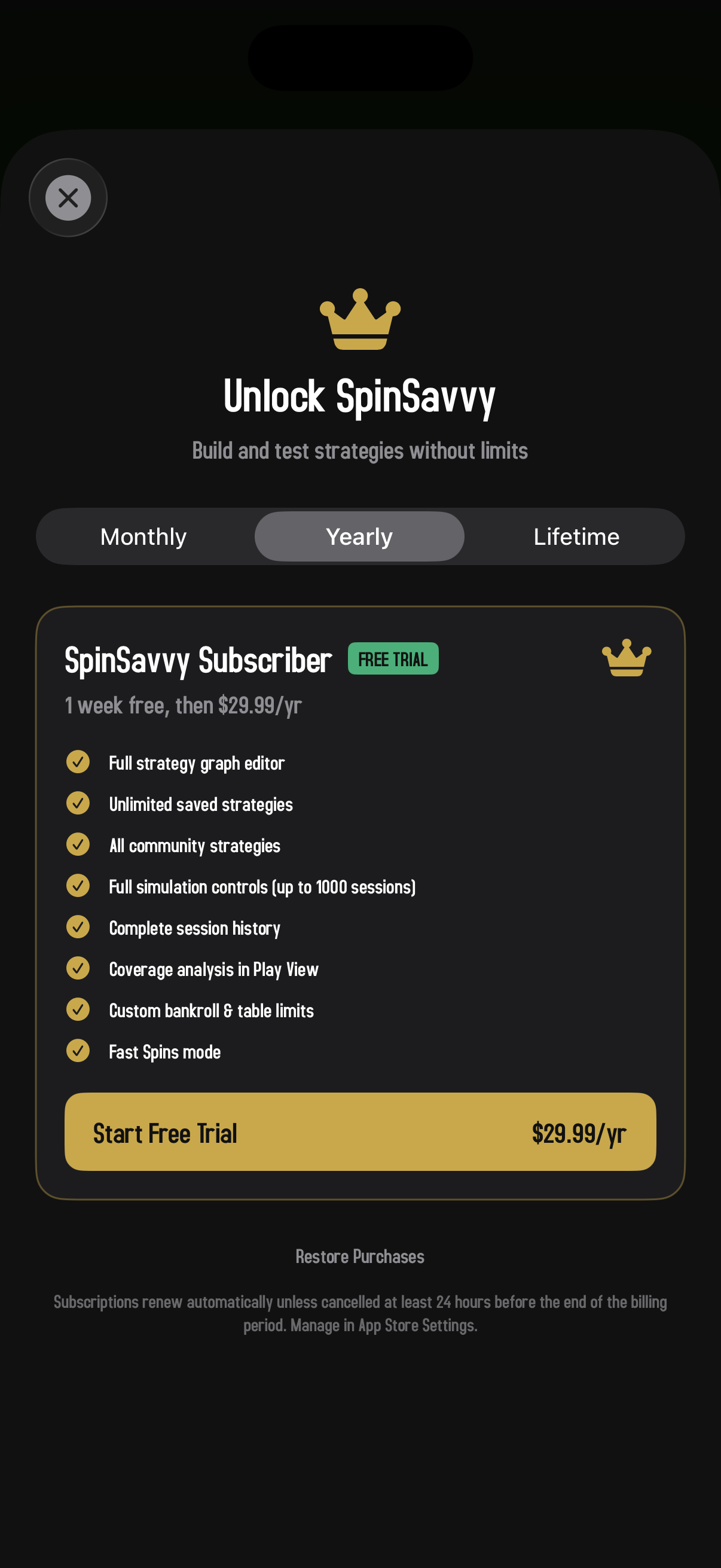
Spin Savvy offers three options:
- Monthly. Billed every month; the easiest way to try it.
- Yearly. Billed once a year; works out cheaper than monthly (you'll see a "save" badge if so).
- Lifetime. Pay once, keep forever.
Tap a tab to see the current price and any savings or trial offers. Pricing comes from Apple, so it's localized to your region. What you see in the app is what you'll be charged.
If you're eligible for a free trial, the Subscribe button will say "Subscribe with Free Trial" and the trial length is shown next to the price. Apple limits free trials to once per Apple ID, so if you've already taken one, the trial may not appear.
Tapping Subscribe
The standard Apple in-app purchase flow takes over: Face ID or Touch ID, a confirmation, and you're done. The paywall closes automatically and you're back in the app with everything unlocked.
Restoring a previous purchase
If you've already subscribed (maybe on another device, or after reinstalling the app) and the app is still treating you as a free user, tap Restore Purchases. It's available both on the paywall and in Settings. Apple verifies your account and the subscription comes back on within a second or two.
- Make sure you're signed in to Apple with the same ID you used to subscribe.
- Wait a few seconds and try again. Apple's response is sometimes slow.
- If you bought a Lifetime plan, restoring should always bring it back. Monthly and yearly subscriptions restore as long as they're still active.
Managing or canceling
Subscriptions are managed through Apple, not Spin Savvy. To upgrade, downgrade, or cancel, open Settings inside the app and tap Manage Subscription. You'll be handed off to the Apple subscription management screen, where you can change plans or cancel anytime.
If you cancel, you'll keep subscriber access through the end of your current billing period and revert to the free tier after that. None of your strategies or sessions are deleted when you revert; you just lose access to the subscriber-only features. Re-subscribing brings everything back exactly as it was.
The Lifetime plan, by definition, doesn't have a billing period to manage. It's a one-time payment.
Family Sharing
Spin Savvy subscriptions are eligible for Apple's Family Sharing where supported. Check your Family Sharing settings in Apple Settings to share your subscription with family members.
Money back
Spin Savvy doesn't process payments directly. Apple does. Refunds are handled through Apple's refund process. You can request a refund at reportaproblem.apple.com if something didn't go as expected.