
The Wager Editor
A roulette table you can actually touch. Pick a chip, tap a number, place a bet.
Anywhere in Spin Savvy that you need to place chips on a table, whether you're playing a live spin, reviewing a wager from a past spin, or designing a step inside a strategy, you'll see the same wager editor. Once you've used it once, you've used it everywhere.
The layout
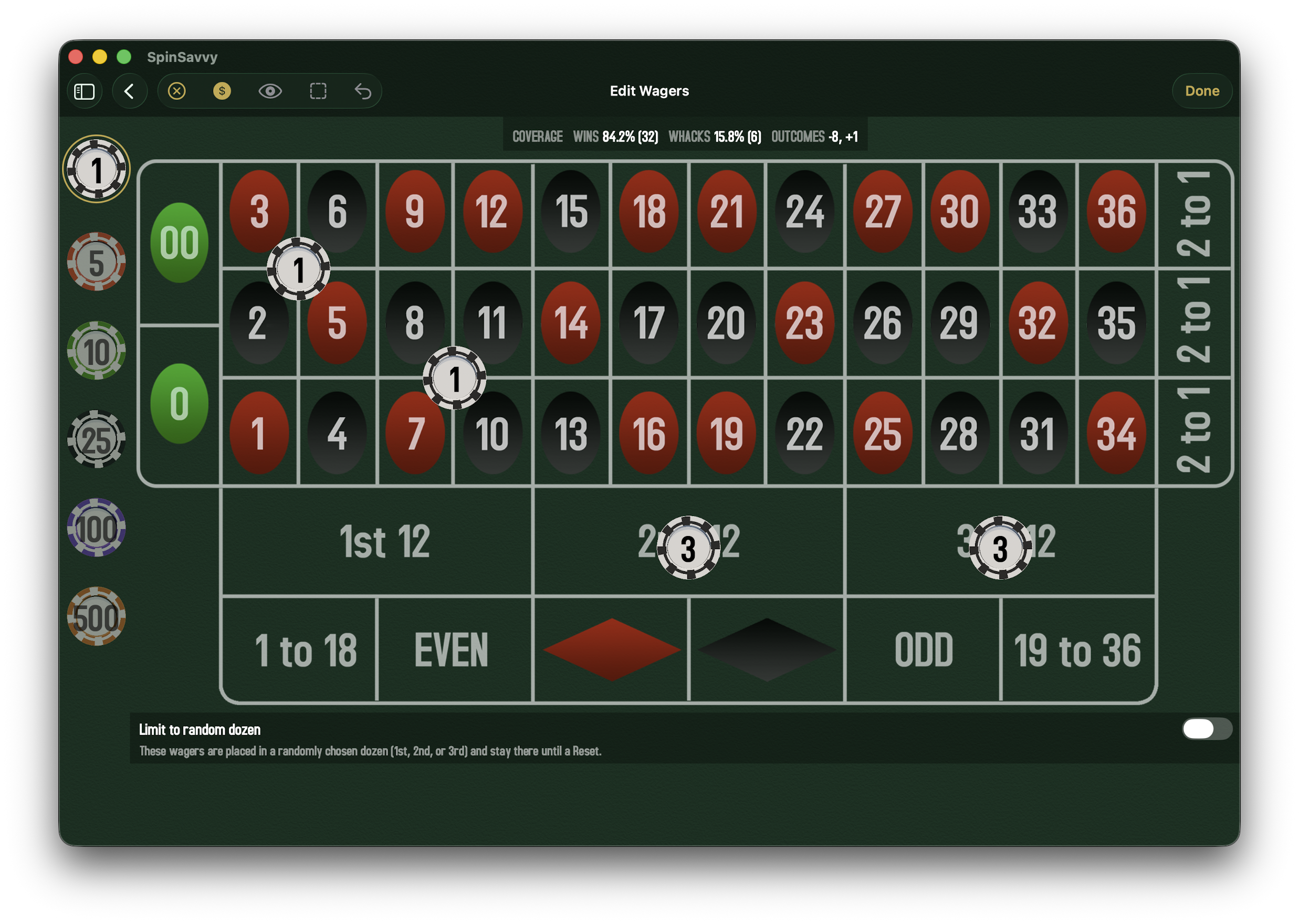
Two main areas:
- The chip tray. Runs down the left side, showing every chip denomination you can pick up.
- The roulette table. Fills the right side, with every bet zone you can drop chips on.
Across the top sit a few toolbar buttons (Undo, Clear All, the coverage toggle, and so on). A thin stat strip just below shows your coverage numbers at a glance: WINS, WHACKS, and OUTCOMES. On Play Mode there's also a stats bar showing your bankroll and recent results.
The full roulette table doesn't comfortably fit on a phone in portrait, so opening the wager editor on iPhone rotates the screen to landscape and locks it there for the duration. When you tap Done, the device rotates back to whatever orientation you're physically holding it in. iPad and Mac aren't affected; both already have room for the table in any orientation.
The chip tray
Spin Savvy uses six chip denominations. By default each chip's value is shown in dollars; the exact dollar value depends on the strategy's unit size. Each chip is a fixed multiple of one unit, and the unit size controls what one unit is worth in dollars.
| Chip | Multiplier | At $1 unit size | At $5 unit size |
|---|---|---|---|
| White | 1× unit | $1 | $5 |
| Red | 5× unit | $5 | $25 |
| Green | 10× unit | $10 | $50 |
| Black | 25× unit | $25 | $125 |
| Purple | 100× unit | $100 | $500 |
| Orange | 500× unit | $500 | $2,500 |
Tap a chip to select it. The selected chip gets a gold ring around it so you always know which one is in your hand. From that moment on, every chip you place on the table will be that denomination, until you tap a different one.
The wager editor defaults to dollar display, but roulette systems are traditionally written in units so the same recipe works at any stake level. Tap the $ icon in the toolbar to flip the chip tray and chip tokens between dollar amounts ($5) and unit multiples (5U). Same chips, same wagers, just labeled differently. It's a single app-wide setting, so flipping it here also flips the canvas, the node inspector, and the simulation setup screen — set it once and everywhere agrees.
Placing a bet
- Tap the chip denomination you want from the left tray.
- Tap the spot on the table where you want to bet. It can be a single number, a row, a column, a dozen, or any of the outside bets like red/black or even/odd.
- A chip token appears in that spot with the value displayed on it. Done.
You can stack multiple chips on the same spot. For example, with a $1 unit size, tap the $5 chip and then tap "Red" twice and you've placed $10 total. The chip token shows your total at that spot, not the count of chips.
What you can bet on
The roulette table supports every standard bet:
Inside bets (riskier, bigger payouts)
- Straight-up. A single number (0, 00, 000, or 1–36).
- Split. Two adjacent numbers; tap the line between them.
- Street. Three numbers in a row; tap the outer edge of the row.
- Corner. Four numbers meeting at a corner.
- Six-Line. Two adjacent rows (six numbers).
- Basket. Special zero-area bets, depending on table type.
Outside bets (safer, smaller payouts)
- Red or Black
- Even or Odd
- High (19–36) or Low (1–18)
- Dozens. 1st (1–12), 2nd (13–24), or 3rd (25–36).
- Columns. Three vertical columns of twelve numbers each.
Each bet zone is a tappable target on the table layout. If you're not sure where a particular bet goes, tap roughly where you want it and watch the chip. If it landed in the wrong spot, just undo and try again.
Moving and removing chips
Drag to adjust
Touch and hold a placed chip and drag it to a different spot. As you drag, the table highlights wherever you're hovering so you can see where the bet will land. Lift your finger to drop. Drag off the table edge to cancel.
Undo
The Undo button (←) reverts your last placement. It keeps a generous history, so you can step backwards through several recent bets if you need to.
Clear All
The Clear All button (a trash icon) wipes every chip off the table at once. It always asks for confirmation first, since you don't want to nuke a carefully placed bet by accident.
Coverage and hit zones
The wager editor has a couple of optional overlays that help you understand what your bets actually cover.
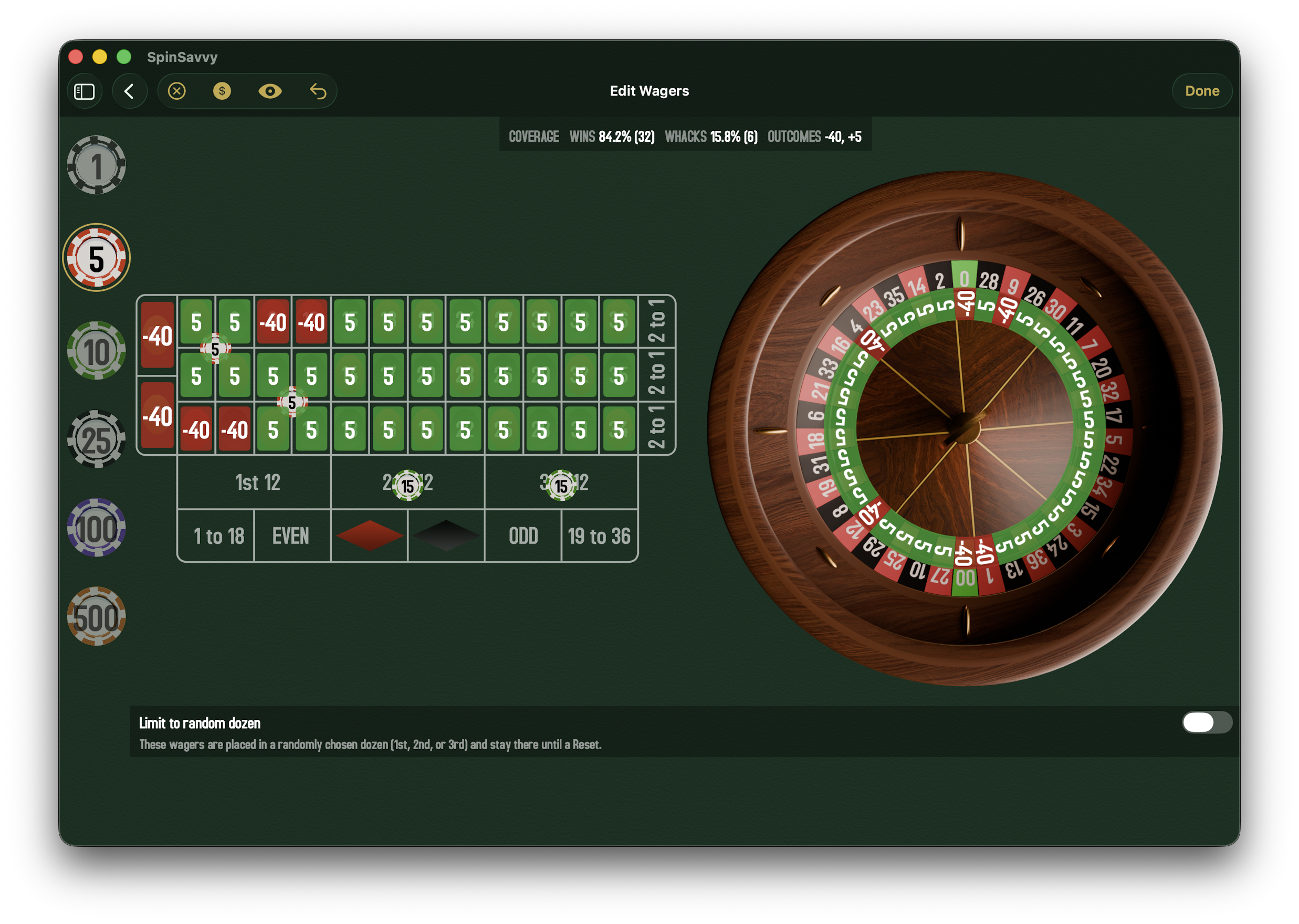
Show Coverage
Once you've placed some chips, tap the eye button in the toolbar to see exactly which numbers will pay you and which will cost you. Each number lights up green (you win net), red (you lose net), blue (push) or yellow (jackpot). It's an instant visualization of how much of the wheel your bets actually cover.
A small top-down wheel also appears beside the table with the same color tiers painted on each pocket and the net outcome printed inside, so you can see how those bets cluster around the physical wheel — not just the table layout. Tap the eye again to hide both overlays.
Coverage overlay is part of the Subscriber tier. Read more →
Show Hit Zones
A debugging tool, mostly. It draws a colored rectangle over every tappable bet zone so you can see exactly where the touch targets are. Most players never need to turn this on; it's there for the curious.
Read-only mode
When you're looking at a wager from a past spin (for example, viewing a session's spin-by-spin breakdown) or previewing a step from the strategy graph, the wager editor opens in read-only mode. The chip tray is hidden, taps on the table are ignored, and a small note tells you you're viewing only. You can still flip the coverage overlay on to inspect the bets, but to actually change the wagers behind a step in a strategy, open that strategy's graph editor and tap into the step.
The "anchor on dozens" mode
Some advanced strategies confine all of their bets to a single dozen, usually the 1st dozen (numbers 1–12), and then use rotation logic to apply those bets to whichever dozen the strategy chooses at runtime. When you're editing wagers for one of these "anchored" steps, the table grays out everything outside the 1st dozen so you can only place chips inside it. Don't be alarmed; it's intentional.